
So you’re interested in the best WordPress plugins on the market, is that right?
Well, you’re in luck because I’ve painstakingly spent hours upon hours crafting both the downloadable table (link below to download) and this post for your benefit.
Now, how should you use this EPIC guide? A few things:
- First, select your favorite 20 plugins (rule-of-thumb, just don’t increase your site load time too much – check out Google PageSpeed Insights for testing purposes)
- Second, Start creating valuable content on your blog utilizing these plugins
- Third, Stick with ’em (don’t waste your time reading more articles on WordPress plugins and tools – there’s 101 listed here so you don’t have to)
Awesome, let’s jump on in!
Do you want to download a table of the 101 best WordPress plugins as your own?
Quick answer (last checked: November 17, 2026)
17 of the plugin links in this guide now point to plugins that WordPress.org has closed, most of them for security issues, so please don’t install those. Several others have not been updated in years. I checked every plugin that links to the WordPress.org directory on November 17, 2026, and put the results in the status check near the end of this post and in a short note under each affected plugin.
What still holds up: the big, actively updated plugins in this list (for example Yoast SEO with 10 million or more active installs, Akismet, Wordfence, UpdraftPlus, Contact Form 7 and WooCommerce) were all updated recently. The rest of the guide below is still the original write-up, so read the status notes before you install anything.
10 Best WordPress Plugins for SEO
WordPress plugins for SEO are designed to help website owners optimize their websites for search engines like Google, Bing, and Yahoo. These plugins offer a range of features and tools to help improve your website’s visibility in search engine results pages (SERPs), including:
Keyword optimization: Many SEO plugins offer features that help you identify and use relevant keywords throughout your content, which can help improve your search rankings.
Metadata management: SEO plugins can help you optimize your website’s metadata, including title tags, meta descriptions, and other elements that appear in search engine results.
Content analysis: Some SEO plugins offer content analysis tools that help you identify areas where your content could be improved for SEO purposes, such as readability, keyword usage, and more.
XML sitemaps: Many SEO plugins automatically generate XML sitemaps, which can help search engines crawl and index your website more effectively.
Social media integration: Some SEO plugins offer features that help you optimize your content for social media sharing, such as Open Graph and Twitter Card tags.
There are many SEO plugins available for WordPress, both free and premium. Some of the most popular include Yoast SEO, All in One SEO Pack, Rank Math, and SEOPress. Each plugin has its own unique set of features and benefits, so it’s important to research and compare different options to find the one that’s right for your website.
1. Yoast SEO

Yoast SEO is a popular WordPress plugin that helps website owners optimize their website for search engines. The plugin has both a free and a premium version, and it offers a wide range of features that can help improve your website’s visibility in search engine results pages (SERPs).
Here are some of the key features of the Yoast SEO plugin:
Content analysis: The plugin analyzes your content and provides suggestions for improving your SEO, including recommendations for keyword usage, readability, and more.
Title and meta description templates: Yoast SEO allows you to set up templates for your page titles and meta descriptions, making it easy to create consistent and optimized metadata across your website.
XML sitemaps: The plugin automatically generates an XML sitemap for your website, which helps search engines crawl and index your content.
Social media integration: Yoast SEO allows you to set up social media metadata for your pages, including Open Graph and Twitter Card tags, which can help your content look more appealing when shared on social media.
To use Yoast SEO, you’ll need to install the plugin on your WordPress website. Once you’ve installed and activated the plugin, you can access its settings and features through the WordPress dashboard.
Here’s a step-by-step guide to using Yoast SEO:
Install the plugin: You can download the plugin from the WordPress plugin repository or from the Yoast website. Once you’ve downloaded the plugin, upload it to your WordPress site and activate it.
Configure the settings: Once you’ve activated the plugin, navigate to the Yoast SEO settings page to configure the plugin’s settings. Here, you can set up your default metadata templates, social media metadata, and other options.
Optimize your content: When you create or edit a page or post in WordPress, you’ll see a Yoast SEO box below the content editor. This box provides analysis and optimization suggestions for your content, including recommendations for keyword usage, readability, and more.
Generate an XML sitemap: Yoast SEO automatically generates an XML sitemap for your website, which you can submit to search engines to help them crawl and index your content. You can access your sitemap by going to the XML Sitemaps tab in the Yoast SEO settings.
Here are some external links that can help you learn more about Yoast SEO and how to use it:
- Yoast SEO website: Visit the official website for the Yoast SEO plugin.
- Yoast SEO blog: Check out the latest news and tips on the Yoast SEO blog.
- Beginner’s guide to using Yoast SEO: Learn how to install and setup the Yoast SEO plugin for WordPress with this beginner’s guide.
2. All In One SEO Pack

All in One SEO Pack is a popular WordPress plugin that helps website owners optimize their website for search engines. The plugin has both a free and a premium version, and it offers a wide range of features that can help improve your website’s visibility in search engine results pages (SERPs).
Here are some of the key features of the All in One SEO Pack plugin:
XML sitemaps: The plugin automatically generates an XML sitemap for your website, which helps search engines crawl and index your content.
Title and meta description optimization: All in One SEO Pack allows you to set up optimized title and meta description tags for your pages and posts.
Keyword optimization: The plugin includes features to help you identify and use relevant keywords throughout your content.
Social media integration: All in One SEO Pack allows you to set up social media metadata for your pages, including Open Graph and Twitter Card tags.
To use All in One SEO Pack, you’ll need to install the plugin on your WordPress website. Once you’ve installed and activated the plugin, you can access its settings and features through the WordPress dashboard.
Here’s a step-by-step guide to using All in One SEO Pack:
Install the plugin: You can download the plugin from the WordPress plugin repository or from the All in One SEO Pack website. Once you’ve downloaded the plugin, upload it to your WordPress site and activate it.
Configure the settings: Once you’ve activated the plugin, navigate to the All in One SEO Pack settings page to configure the plugin’s settings. Here, you can set up your default metadata templates, social media metadata, and other options.
Optimize your content: When you create or edit a page or post in WordPress, you can use the All in One SEO Pack box below the content editor to optimize your content for SEO. This box provides analysis and optimization suggestions for your content, including recommendations for keyword usage, readability, and more.
Generate an XML sitemap: All in One SEO Pack automatically generates an XML sitemap for your website, which you can submit to search engines to help them crawl and index your content. You can access your sitemap by going to the XML Sitemap tab in the All in One SEO Pack settings.
Here are some external links that can help you learn more about All in One SEO Pack and how to use it:
- All in One SEO Pack website: Visit the official website for the All in One SEO Pack plugin.
- All in One SEO Pack documentation: Check out the official documentation for the All in One SEO Pack plugin to learn more about its features and how to use them.
- Beginner’s guide to using All in One SEO Pack: This guide from WPBeginner provides a comprehensive overview of the All in One SEO Pack plugin and how to use it.
3. Google XML Sitemaps
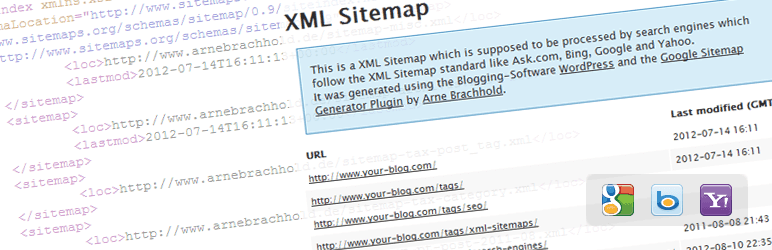
The Google XML Sitemaps plugin is a tool for WordPress that helps you generate an XML sitemap for your website. A sitemap is a file that lists all the pages on your website, and it helps search engines like Google understand the structure of your website and find all the pages you want to be indexed.
Here’s how to use the Google XML Sitemaps plugin:
Install and activate the plugin: You can download the Google XML Sitemaps plugin from the WordPress Plugin Directory. Once installed, activate the plugin.
Configure the settings: After activation, you can configure the settings of the plugin. You can customize the settings of your sitemap, such as the frequency of updates, the priority of pages, and more.
Generate the sitemap: After configuring the settings, you can generate your sitemap by clicking on the “Generate Sitemap” button. The plugin will automatically create an XML sitemap for your website.
Submit the sitemap to search engines: After generating the sitemap, you can submit it to search engines like Google to help them find and index your website. You can do this by using Google Search Console.
The Google XML Sitemaps plugin is a powerful tool for improving the SEO of your WordPress website. It helps search engines understand the structure of your website and find all the pages you want to be indexed.
Here are some external links that can help you learn more about the Google XML Sitemaps plugin:
- Google XML Sitemaps plugin for WordPress: Learn more about the Google XML Sitemaps plugin for WordPress.
- Google Search Console: Learn how to submit your sitemap to Google Search Console.
- Yoast SEO plugin: Yoast SEO also has an XML sitemap feature. Learn more about the Yoast SEO plugin.
4. Broken Link Checker

The Broken Link Checker plugin is a tool for WordPress that helps you identify broken links on your website. Broken links are links that lead to pages or resources that no longer exist, resulting in a 404 error. These can hurt the user experience on your website and negatively impact your SEO.
Here’s how to use the Broken Link Checker plugin:
Install and activate the plugin: You can download the Broken Link Checker plugin from the WordPress Plugin Directory. Once installed, activate the plugin.
Run a scan: After activation, the plugin will automatically scan your website for broken links. This may take some time, depending on the size of your website.
Review the results: Once the scan is complete, you can review the results of the broken links found on your website. You can see where the broken links are located and the context in which they appear.
Fix or remove broken links: Once you have identified the broken links, you can either fix them or remove them from your website. If the link is pointing to a page that no longer exists, you can redirect it to a new page.
The Broken Link Checker plugin is a useful tool for identifying and fixing broken links on your website. By doing so, you can improve the user experience and maintain the SEO health of your website.
Here are some external links that can help you learn more about the Broken Link Checker plugin:
- Broken Link Checker plugin for WordPress: Learn more about the Broken Link Checker plugin for WordPress.
- How to fix broken links on your website: Learn how to fix broken links on your website.
- Best practices for link building: Learn about the best practices for link building.
5. Google Analytics for WordPress

The Google Analytics for WordPress plugin is a tool for WordPress that helps you track your website’s traffic and user behavior using Google Analytics. Google Analytics is a powerful tool that allows you to analyze your website’s performance and identify areas for improvement.
Here’s how to use the Google Analytics for WordPress plugin:
Install and activate the plugin: You can download the Google Analytics for WordPress plugin from the WordPress Plugin Directory. Once installed, activate the plugin.
Set up Google Analytics: If you haven’t already, you’ll need to set up a Google Analytics account and create a tracking code. You can find instructions on how to do this in the Google Analytics Help Center.
Configure the plugin settings: After activation, you can configure the settings of the plugin. You’ll need to enter your tracking code and choose the settings that work best for your website.
Start tracking: After configuring the settings, you can start tracking your website’s traffic and user behavior using Google Analytics. You can view reports and data in the Google Analytics dashboard.
The Google Analytics for WordPress plugin is a powerful tool for understanding your website’s traffic and user behavior. By tracking this data, you can identify areas for improvement and make informed decisions about your website’s content and design.
Here are some external links that can help you learn more about the Google Analytics for WordPress plugin:
- Google Analytics for WordPress plugin: Learn more about the Google Analytics for WordPress plugin.
- Google Analytics Help Center: Learn how to set up Google Analytics and use the tool effectively.
- Beginner’s guide to Google Analytics: Learn the basics of Google Analytics and how to use it for your website.
6. All In One WP Security & Firewall

The All In One WP Security & Firewall plugin is a tool for WordPress that helps you improve the security of your website. The plugin provides a range of security features to protect your website against common security threats, such as brute force attacks, login attacks, and more.
Here’s how to use the All In One WP Security & Firewall plugin:
Install and activate the plugin: You can download the All In One WP Security & Firewall plugin from the WordPress Plugin Directory. Once installed, activate the plugin.
Configure the security settings: After activation, you can configure the security settings of the plugin. The plugin provides a range of security features, including user account security, database security, and firewall protection.
Run a security scan: Once you have configured the security settings, you can run a security scan to identify any vulnerabilities on your website. The plugin will highlight any issues and provide recommendations for how to address them.
Monitor the security of your website: The All In One WP Security & Firewall plugin provides real-time security monitoring for your website. You can view logs of security events and receive email notifications of any security issues.
By using the All In One WP Security & Firewall plugin, you can improve the security of your WordPress website and protect it against common security threats.
Here are some external links that can help you learn more about the All In One WP Security & Firewall plugin:
- All In One WP Security & Firewall plugin for WordPress: Learn more about the All In One WP Security & Firewall plugin for WordPress.
- How to improve the security of your WordPress website: Learn about best practices for improving the security of your WordPress website.
- WordPress security plugins: Learn about other security plugins for WordPress.
7. WPtouch

The WPtouch plugin is a tool for WordPress that helps you create a mobile-friendly version of your website. The plugin creates a responsive and mobile-optimized version of your website, making it easier for mobile users to access and navigate your content.
Here’s how to use the WPtouch plugin:
Install and activate the plugin: You can download the WPtouch plugin from the WordPress Plugin Directory. Once installed, activate the plugin.
Configure the settings: After activation, you can configure the settings of the plugin. You can choose the colors and style of your mobile site, and customize the layout and design.
Preview your mobile site: After configuring the settings, you can preview your mobile site to see how it looks on different devices. You can also make any necessary adjustments to the design and layout.
Publish your mobile site: Once you are satisfied with the design and layout of your mobile site, you can publish it. The WPtouch plugin will automatically detect when users are accessing your website from a mobile device and display the mobile site instead.
By using the WPtouch plugin, you can create a mobile-friendly version of your website without having to redesign your entire site.
Here are some external links that can help you learn more about the WPtouch plugin:
- WPtouch plugin for WordPress: Learn more about the WPtouch plugin for WordPress.
- How to create a mobile-friendly website: Learn about best practices for creating a mobile-friendly website.
- Responsive design in WordPress: Learn about responsive design in WordPress.
8. Yet Another Related Posts Plugin (YARPP)
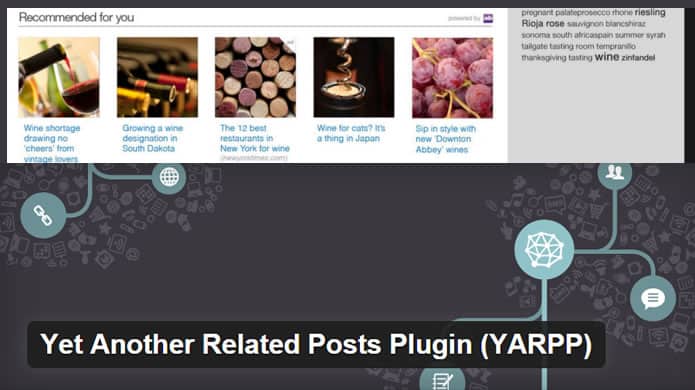
The Yet Another Related Posts Plugin (YARPP) is a tool for WordPress that helps you display related posts to your visitors. The plugin uses an algorithm to find posts that are related to the one that the visitor is currently reading, and displays them at the bottom of the page.
Here’s how to use the YARPP plugin:
Install and activate the plugin: You can download the YARPP plugin from the WordPress Plugin Directory. Once installed, activate the plugin.
Configure the settings: After activation, you can configure the settings of the plugin. You can choose how the related posts are displayed, the number of related posts to show, and other customization options.
Customize the appearance: The YARPP plugin comes with a set of default styles, but you can customize the appearance of the related posts to match your website’s design.
Display related posts: Once you have configured the settings and appearance of the plugin, the related posts will be automatically displayed at the bottom of your posts.
The YARPP plugin is a useful tool for improving the user experience on your website by providing visitors with related content to read.
Here are some external links that can help you learn more about the YARPP plugin:
- Yet Another Related Posts Plugin (YARPP) for WordPress: Learn more about the YARPP plugin for WordPress.
- Best practices for displaying related posts: Learn about best practices for displaying related posts on your website.
- WordPress plugins for improving user experience: Learn about other WordPress plugins for improving the user experience.
9. SEO Optimized Images

The SEO Optimized Images plugin is a tool for WordPress that helps you optimize your images for search engines. The plugin adds alt and title attributes to your images based on the file name and other factors, which can improve the SEO of your website.
Here’s how to use the SEO Optimized Images plugin:
Install and activate the plugin: You can download the SEO Optimized Images plugin from the WordPress Plugin Directory. Once installed, activate the plugin.
Configure the settings: After activation, you can configure the settings of the plugin. You can choose the format of the alt and title tags, and customize the settings to fit your website’s needs.
Optimize your images: Once the settings are configured, the plugin will automatically add alt and title tags to your images based on the file name and other factors. You can also manually optimize your images by adding alt and title tags to them.
By using the SEO Optimized Images plugin, you can improve the SEO of your WordPress website and make it easier for search engines to understand the content of your images.
Here are some external links that can help you learn more about the SEO Optimized Images plugin:
- SEO Optimized Images plugin for WordPress: Learn more about the SEO Optimized Images plugin for WordPress.
- How to optimize images for SEO: Learn about best practices for optimizing images for SEO.
- WordPress plugins for SEO: Learn about other WordPress plugins for SEO.
10. Schema Pro

The Schema Pro plugin is a tool for WordPress that helps you add structured data markup to your website, making it easier for search engines to understand the content of your website. By adding structured data, you can improve the appearance of your website in search engine results pages (SERPs) and potentially boost your SEO.
Here’s how to use the Schema Pro plugin:
Install and activate the plugin: You can purchase and download the Schema Pro plugin from the developer’s website, WP Astra. Once installed, activate the plugin.
Choose a schema type: After activation, you can choose a schema type to apply to your website. The plugin provides a range of schema types to choose from, including articles, events, products, and more.
Customize the schema markup: Once you have chosen a schema type, you can customize the schema markup to fit your website’s needs. The plugin provides a user-friendly interface for adding and editing the schema markup.
Publish the schema markup: Once you have customized the schema markup, you can publish it to your website. The plugin will automatically add the schema markup to your website’s pages and posts.
By using the Schema Pro plugin, you can improve the appearance of your website in SERPs and potentially boost your SEO by making it easier for search engines to understand the content of your website.
Here are some external links that can help you learn more about the Schema Pro plugin:
- Schema Pro plugin for WordPress: Learn more about the Schema Pro plugin for WordPress.
- How to use schema markup for SEO: Learn about best practices for using schema markup for SEO.
- WordPress plugins for SEO: Learn about other WordPress plugins for SEO.
10 Best WordPress Plugins for Design
WordPress plugins for design are tools that help website owners enhance and customize the look and feel of their websites. These plugins offer a range of features and tools to help you create a visually appealing website without the need for advanced coding or design skills.
Some popular types of design plugins for WordPress include:
Page builders: Page builder plugins allow you to create custom layouts and designs for your website pages and posts using drag-and-drop interfaces. Examples of popular page builder plugins include Elementor, Beaver Builder, and Divi.
Customizer plugins: Customizer plugins offer a range of customization options for your website’s design, including options for changing colors, fonts, layouts, and more. Examples of popular customizer plugins include Customizer Pro and Yellow Pencil.
Slider plugins: Slider plugins allow you to add customizable image and content sliders to your website, which can help improve the visual appeal of your site. Examples of popular slider plugins include Soliloquy and Smart Slider 3.
Gallery plugins: Gallery plugins allow you to create and customize image galleries on your website, which can be useful for showcasing portfolios or product images. Examples of popular gallery plugins include NextGEN Gallery and Envira Gallery.
Animation plugins: Animation plugins allow you to add animated effects to your website’s design, such as hover effects, scrolling animations, and more. Examples of popular animation plugins include Animate It! and WP Animate.
There are many design plugins available for WordPress, both free and premium. Each plugin has its own unique set of features and benefits, so it’s important to research and compare different options to find the ones that are right for your website’s needs.
1. Elementor Pro

Elementor Pro is a popular page builder plugin for WordPress that allows you to create custom layouts and designs for your website pages and posts using drag-and-drop interfaces. It has both a free and a premium version, and it offers a wide range of features and tools to help you create a visually appealing website without the need for advanced coding or design skills.
Here are some of the key features of the Elementor Pro plugin:
Visual page builder: The plugin includes a visual page builder that allows you to create custom page layouts and designs using a drag-and-drop interface.
Theme builder: Elementor Pro allows you to create custom header, footer, and archive page designs using the same visual interface.
Pre-designed templates: The plugin includes a range of pre-designed templates and blocks that you can use to jumpstart your designs.
Advanced design options: Elementor Pro includes a range of advanced design options, such as custom fonts, animations, and effects, that allow you to create unique and engaging website designs.
To use Elementor Pro, you’ll need to install the plugin on your WordPress website. Once you’ve installed and activated the plugin, you can access its settings and features through the WordPress dashboard.
Here’s a step-by-step guide to using Elementor Pro:
Install the plugin: You can download the plugin from the Elementor Pro website, then upload it to your WordPress site and activate it.
Create a new page: When you create a new page or post in WordPress, you can use the Elementor Pro interface to create a custom layout and design for your content.
Use the page builder: To create your layout and design, use the Elementor Pro page builder interface to drag and drop widgets, blocks, and other elements onto your page.
Customize your design: Use the advanced design options in Elementor Pro to customize your layout, add animations and effects, and create a unique design that reflects your brand.
Publish your page: Once you’re happy with your design, you can publish your page or post to make it live on your website.
Here are some external links that can help you learn more about Elementor Pro and how to use it:
- Elementor Pro website: Visit the official website for the Elementor Pro plugin.
- Elementor Pro documentation: Check out the official documentation for Elementor Pro to learn more about its features and how to use them.
2. SiteOrigin Page Builder
The SiteOrigin Page Builder plugin is a tool for WordPress that helps you create custom page layouts using a drag-and-drop interface. The plugin provides a range of pre-built widgets and layouts, allowing you to create unique and visually appealing pages without any coding knowledge.
Here’s how to use the SiteOrigin Page Builder plugin:
Install and activate the plugin: You can download the SiteOrigin Page Builder plugin from the WordPress Plugin Directory. Once installed, activate the plugin.
Create a new page: After activation, you can create a new page in WordPress. On the edit page screen, you’ll see a new button that says “Page Builder”. Click this button to open the page builder interface.
Add widgets and elements: Once in the page builder interface, you can add widgets and elements to your page using the drag-and-drop interface. The plugin provides a range of pre-built widgets and layouts, as well as customization options for colors, fonts, and more.
Customize the page layout: Once you have added widgets and elements to your page, you can customize the page layout to fit your needs. The plugin provides a range of customization options for the page layout, including columns, rows, and padding.
Publish the page: Once you are satisfied with the page layout and design, you can publish the page to your website.
The SiteOrigin Page Builder plugin is a powerful tool for creating custom page layouts in WordPress without any coding knowledge.
Here are some external links that can help you learn more about the SiteOrigin Page Builder plugin:
- SiteOrigin Page Builder plugin for WordPress: Learn more about the SiteOrigin Page Builder plugin for WordPress.
- How to use a page builder in WordPress: Learn about best practices for using a page builder in WordPress.
- WordPress plugins for website design: Learn about other WordPress plugins for website design.
3. ShortPixel

I currently use ShortPixel to speed up my site tremendously by automatically compressing and optimizing all my images. It’s hands-down the best at doing it!
4. SiteOrigin CSS
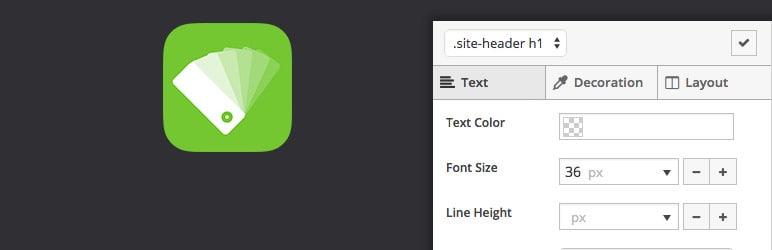
SiteOrigin CSS allows you to get down and dirty into the CSS code of your website. The cool part: it’s actually a visual site editor in real-time.
5. The Visual Editor
Update (November 2026): WordPress.org closed this plugin on November 9, 2022 (guideline violation) and it is no longer available for download there. I would not install it.

You can create sweet posts, pages, audio clips, videos, etc. all visually editable.
6. Thrive Architect

The Thrive Architect plugin is a tool for WordPress that helps you create custom page layouts and landing pages using a drag-and-drop interface. The plugin provides a range of pre-built templates and content elements, allowing you to create unique and visually appealing pages without any coding knowledge.
Here’s how to use the Thrive Architect plugin:
Install and activate the plugin: You can purchase and download the Thrive Architect plugin from the Thrive Themes website. Once installed, activate the plugin.
Create a new page: After activation, you can create a new page in WordPress. On the edit page screen, you’ll see a new button that says “Edit with Thrive Architect”. Click this button to open the Thrive Architect interface.
Add content elements: Once in the Thrive Architect interface, you can add content elements to your page using the drag-and-drop interface. The plugin provides a range of pre-built templates and content elements, as well as customization options for colors, fonts, and more.
Customize the page layout: Once you have added content elements to your page, you can customize the page layout to fit your needs. The plugin provides a range of customization options for the page layout, including columns, rows, and padding.
Publish the page: Once you are satisfied with the page layout and design, you can publish the page to your website.
The Thrive Architect plugin is a powerful tool for creating custom page layouts and landing pages in WordPress without any coding knowledge.
Here are some external links that can help you learn more about the Thrive Architect plugin:
- Thrive Architect plugin for WordPress: Learn more about the Thrive Architect plugin for WordPress.
- How to use the Thrive Architect plugin: Learn about best practices for using the Thrive Architect plugin.
- WordPress plugins for website design: Learn about other WordPress plugins for website design.
7. Beaver Builder

Over 1,000,000 websites have been built with Beaver Builder. It’s got front-end editing, WooCommerce support, optimized for SEO, and so much more!
8. Divi Builder
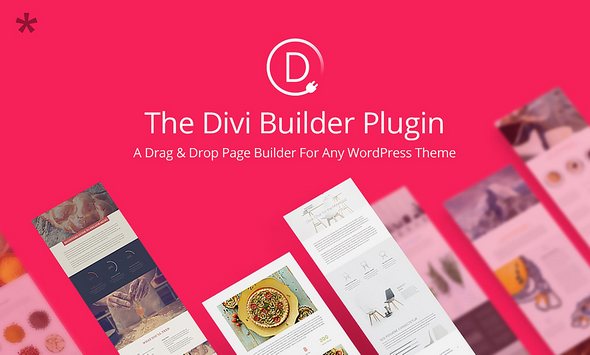
It’s probably one of the most popular builder and theme out there so you really can’t go wrong with it. Having true visual editing along with custom CSS control makes it simply awesome!
9. Visual Composer

Create layouts for your site that sell more. From templates to extensions, Visual Composer has you covered!
10. MotoPress

The MotoPress plugin is a visual editor for WordPress that allows users to create custom page layouts and content using a drag-and-drop interface. The plugin provides a range of pre-built templates, widgets, and content elements, allowing you to create unique and visually appealing pages without any coding knowledge.
Here’s how to use the MotoPress plugin:
Install and activate the plugin: You can purchase and download the MotoPress plugin from the MotoPress website. Once installed, activate the plugin.
Create a new page: After activation, you can create a new page in WordPress. On the edit page screen, you’ll see a new button that says “Edit with MotoPress”. Click this button to open the MotoPress interface.
Add content elements: Once in the MotoPress interface, you can add content elements to your page using the drag-and-drop interface. The plugin provides a range of pre-built templates, widgets, and content elements, as well as customization options for colors, fonts, and more.
Customize the page layout: Once you have added content elements to your page, you can customize the page layout to fit your needs. The plugin provides a range of customization options for the page layout, including columns, rows, and padding.
Publish the page: Once you are satisfied with the page layout and design, you can publish the page to your website.
The MotoPress plugin is a powerful tool for creating custom page layouts and content in WordPress without any coding knowledge.
Here are some external links that can help you learn more about the MotoPress plugin:
- MotoPress plugin for WordPress: Learn more about the MotoPress plugin for WordPress.
- How to use the MotoPress plugin: Learn about best practices for using the MotoPress plugin.
- WordPress plugins for website design: Learn about other WordPress plugins for website design.
10 Best WordPress Plugins for Business
WordPress plugins for business are tools that can help website owners build and manage their online businesses. These plugins offer a range of features and tools to help you create and optimize your website for sales, marketing, customer management, and more.
Some popular types of business plugins for WordPress include:
E-commerce plugins: E-commerce plugins allow you to set up and manage an online store on your website, including product catalogs, shopping carts, payment gateways, and more. Examples of popular e-commerce plugins for WordPress include WooCommerce, Shopify, and Easy Digital Downloads.
Lead generation plugins: Lead generation plugins offer a range of tools and features to help you collect leads and build your email list, including pop-ups, forms, and landing pages. Examples of popular lead generation plugins for WordPress include OptinMonster, ConvertPro, and Thrive Leads.
Contact form plugins: Contact form plugins allow you to create and manage custom forms on your website, which can be useful for customer inquiries, support requests, and more. Examples of popular contact form plugins for WordPress include WPForms, Gravity Forms, and Ninja Forms.
CRM plugins: CRM (Customer Relationship Management) plugins allow you to manage your customer relationships and sales pipeline directly from your WordPress dashboard. Examples of popular CRM plugins for WordPress include HubSpot CRM, Agile CRM, and WP-CRM.
Marketing automation plugins: Marketing automation plugins offer a range of features and tools to help you automate your marketing campaigns and increase your website’s conversion rates. Examples of popular marketing automation plugins for WordPress include ActiveCampaign, Drip, and Mailchimp.
There are many business plugins available for WordPress, both free and premium. Each plugin has its own unique set of features and benefits, so it’s important to research and compare different options to find the ones that are right for your website’s needs.
Business #1
Business #1: MonsterInsights
Getting the stats on your website can make all the difference in making more sales. Currently, over 2 million WordPress sites use MonsterInsights to see how users find and interact with their websites. You should too!
Business #2

Business #2: Slack Chat
Slack Chat is a chat plugin for your site. It allows you to do live chat that gets sent straight to your Slack app for mobile notifications.
Business #3

Business #3:
Really Simple SSL
This is just what it sounds like. You get SSL setup for your site if you don’t have it yet in a really simple way.
Business #4

Business #4: BackupBuddy
This is the original WordPress backup plugin. Currently, it’s protecting over half a million WordPress sites from hackers, deleted files, and server crashes.
Business #5

Business #5:
WP Legal Pages
WP Legal Pages is great way to easily get the legal pages for your site in just one click!
Business #6

Business #6: Google Maps Builder
Update (November 2026): the WordPress.org page this entry links to (WD Google Maps) was closed on October 27, 2023 (closure is permanent) and is no longer available for download there. I would not install it.
This one’s pretty sweet if you want to display maps on your site. You can customize the maps with a live preview. Plus, you get geolocation, store locator, unlimited markers, and tons more!
Business #7

Business #7: Akismet Anti-Spam
Akismet is all about ensuring your site is spam free. It automatically checks the comments on your posts to ensure your site isn’t publishing any malicious content. Pretty important stuff!
Business #8

Business #8: BirchPress
BirchPress makes appointment booking easy. You can embed a booking form on a page or a post with shortcode. It’s also cool because you can get email notifications whenever someone books an appiontment automatically.
Business #9

Business #9: Really Simple Click To Call Bar
Update (November 2026): WordPress.org shows this plugin as last updated May 2019 and tested up to WordPress 5.2.30. Check that it still works with your version of WordPress before you use it.
If you’ve ever wanted an easy way for people to call you from your site this is the plugin to get. It allows you to create a simple click to call bar that’s completely customizable. Awesomeness!
Business #10
This is a great plugin if you want to add in code for Google Analytics, Facebook Pixel, and the like.
11 Best WordPress Plugins for Digital Marketers
Here’s an in-depth review of my favorite digital marketing plugins for WordPress!
WordPress plugins for digital marketers are tools that can help website owners improve their online marketing efforts. These plugins offer a range of features and tools to help you increase website traffic, improve search engine optimization, track and analyze website performance, and more.
Here are some popular types of digital marketing plugins for WordPress:
SEO plugins: SEO (Search Engine Optimization) plugins help you optimize your website for search engines and improve your website’s search engine rankings. Examples of popular SEO plugins for WordPress include Yoast SEO, All in One SEO Pack, and Rank Math.
Analytics plugins: Analytics plugins allow you to track and analyze website traffic, user behavior, and other metrics. Examples of popular analytics plugins for WordPress include Google Analytics, MonsterInsights, and Jetpack.
Social media plugins: Social media plugins allow you to integrate social media platforms into your website, making it easier for users to share your content and increasing your social media presence. Examples of popular social media plugins for WordPress include Social Warfare, Mashshare, and Jetpack.
Landing page plugins: Landing page plugins allow you to create custom landing pages for your website, which can be useful for lead generation and improving conversion rates. Examples of popular landing page plugins for WordPress include Elementor Pro, Beaver Builder, and Unbounce.
Email marketing plugins: Email marketing plugins allow you to build and manage your email lists, create and send email campaigns, and track email performance. Examples of popular email marketing plugins for WordPress include Mailchimp, Constant Contact, and Sendinblue.
There are many digital marketing plugins available for WordPress, both free and premium. Each plugin has its own unique set of features and benefits, so it’s important to research and compare different options to find the ones that are right for your website’s needs.
Digital M. #1

1. Thrive Leads
Thrive Leads is what I currently use for email marketing on my website. It’s super intuitive, and I loved the fact that it was a one-time fee instead of monthly when I bought it. Thrive now sells Thrive Leads as a yearly subscription ($199 per year standalone), so check Thrive’s page for the current price. You can check out all the different options by clicking below!
Digital M. #2

2. Thrive Comments
Thrive Comments is hands-down the best comments plugin for WordPress! I currently use it on my site and when you integrate it with Thrive Leads you can start to build your email list even further! Truly, I can’t express enough how valuable it is to focus on building your list – one of the few things that you OWN.
Digital M. #3

3. Hotjar
Used by Adobe, Shopify, SurveyMonkey to name a few. Hotjar is probably the best out there when it comes to getting a visual feel for how users interact with your site with heatmaps. Plus, it’s super easy to setup!
Digital M. #4

4. PixelYourSite
This is a super easy way to install all of those analytics and pixel codes for your site. I use it,so you should too! 😄😜
Digital M. #5

5. Social Warfare
Update (November 2026): WordPress.org shows Social Warfare as last updated about 2 years ago, with 10,000+ active installs, and warns that it has not been tested with the latest 3 major WordPress releases and may no longer be maintained. I wrote that I use it, so check its current status before you install it.
It’s got over 1,000,000 downloads and is by far one of the best social sharing plugins you can get for your site!
Digital M. #6

6. WP Chatbot
Update (November 2026): WordPress.org closed this plugin on March 11, 2026 (security issue) and it is no longer available for download there. I would not install it.
WP Chatbot is really cool because it adds an FB messenger chat widget on your site that users can interact with live. You can even get your Manychat bot setup with it and get subscribers on autopilot!
Digital M. #7

7. Autoptimize
This plugin is definitely what you need if you want a quick and efficient way to decrease your page load time and increase your site speed.
Digital M. #8
8. TablePress
I actually used this plugin to create the EPIC table at the beginning of this post. I highly recommend it if you’re looking for a way to put data on your site in a table format.
Digital M. #9
9. W3 Total Cache
Ensuring you are getting the cache for your website to be optimized is critical. It can mean the difference of someone viewing your site or clicking away before it’s even loaded.
Digital M. #10

10. Duplicate Post
Duplicate post is the best way to start a new post on your blog. Simply clone your previous post with one click and get started writing a new one!
Digital M. #11

11. Google Analytics Dashboard
Now you can get your Google Analytics installed on your site and have it be fully customizable. Check out the details below!
10 Best WordPress Plugins for Ecommerce
WordPress plugins for ecommerce are tools that can help website owners build and manage an online store on their website. These plugins offer a range of features and tools to help you create and optimize your online store, including product catalogs, shopping carts, payment gateways, and more.
Here are some popular types of ecommerce plugins for WordPress:
WooCommerce: WooCommerce is a free, open-source ecommerce plugin for WordPress that offers a range of features and tools to help you build and manage an online store. It includes features such as product catalogs, shopping carts, payment gateways, and more. You can also find many add-ons and extensions for WooCommerce to customize and enhance its features.
Shopify: Shopify is a popular ecommerce platform that offers a plugin for WordPress, allowing you to integrate Shopify’s ecommerce features into your WordPress website. It offers a range of features such as product catalogs, shopping carts, payment gateways, and more, and it’s known for its ease of use and user-friendly interface.
Easy Digital Downloads: Easy Digital Downloads is a free ecommerce plugin for selling digital products on your WordPress website. It offers a range of features such as product catalogs, shopping carts, payment gateways, and more, specifically designed for digital products such as ebooks, music, and software.
BigCommerce: BigCommerce is an ecommerce platform that offers a plugin for WordPress, allowing you to integrate BigCommerce’s ecommerce features into your WordPress website. It offers a range of features such as product catalogs, shopping carts, payment gateways, and more, and it’s known for its scalability and flexibility.
WP eCommerce: WP eCommerce is a free, open-source ecommerce plugin for WordPress that offers a range of features such as product catalogs, shopping carts, payment gateways, and more. It’s known for its ease of use and simplicity, making it a good choice for small businesses or individuals who are just starting with ecommerce.
There are many ecommerce plugins available for WordPress, both free and premium. Each plugin has its own unique set of features and benefits, so it’s important to research and compare different options to find the ones that are right for your website’s needs.
Here are some external links that can help you learn more about ecommerce plugins for WordPress:
- WooCommerce website: Visit the official website for WooCommerce.
- Shopify plugin for WordPress: Learn more about the Shopify plugin for WordPress.
- Easy Digital Downloads website: Visit the official website for Easy Digital Downloads.
- BigCommerce plugin for WordPress: Learn more about the BigCommerce plugin for WordPress.
- WP eCommerce website: Visit the official website for WP eCommerce.
Ecommerce #1

Ecommerce #1: WooCommerce
Their claim to fame: build exactly the eCommerce website you want!
Ecommerce #2

Ecommerce #2: Easy Digital Downloads
This is an amazing plugin that allows you to easily sell your digital products with built-in payment gateways.
Ecommerce #3

Ecommerce #3: Cart66 Cloud
Update (November 2026): WordPress.org closed this plugin on April 10, 2025 (security issue) and it is no longer available for download there. I would not install it.
Cart66 Cloud has a completely built-in recurring billing engine and support for over 100 payment gateways. It’s a great way to ensure you can store and deliver all of your digital products on a recurring basis.
Ecommerce #4
Ecommerce #4: WP eCommerce
Update (November 2026): WordPress.org closed this plugin on February 16, 2024 (security issue) and it is no longer available for download there. I would not install it.
WP eCommerce is similar to WooCommerce. You’re able to sell your digital downloads as well as physical inventory in a hassle-free way.
Ecommerce #5

Ecommerce #5: Ecwid Shopping Cart
If you’re looking to add an online store to your site, Ecwid is a fantastic plugin for the job. You can even integrate it to sell on Facebook and Instagram!
Ecommerce #6

Ecommerce #6: Jigoshop eCommerce
Update (November 2026): WordPress.org closed this plugin on January 3, 2020 (guideline violation) and it is no longer available for download there. I would not install it.
Jigoshop is cool because you get detailed stats in a custom dashboard for how well your store is doing. They also allow you to have an add to cart button to link to external affiliate products. 😃
Ecommerce #7

Ecommerce #7: WP EasyCart
WP EasyCart works with every theme out there by creating a page for the store, cart, and account. You can customize it however you like and you’re ready to start selling your products online.
Ecommerce #8

Ecommerce #8: BigCommerce
BigCommerce focuses scaling your business by allowing you to free up server resources from payments and fulfillment by having the plugin do the work on the back-end.
Ecommerce #9

Ecommerce #9: WP Shopify
Update (November 2026): WordPress.org shows this plugin as last updated April 2024 and tested up to WordPress 6.5.0. Check that it still works with your version of WordPress before you use it.
This plugin works by using WordPress on the front-end and syncing Shopify on the back-end. You can sell your products using default pages that are made to work with the plugin or simply paste the shortcode in the desired place.
Ecommerce #10

Ecommerce #10: iThemes Exchange
Update (November 2026): WordPress.org shows this plugin as last updated December 2018 and tested up to WordPress 5.0.31. Check that it still works with your version of WordPress before you use it.
iThemes Exchange is a simple plugin that adds SKU support to all of your product types.
10 Best WordPress Plugins for Membership
WordPress plugins for membership are tools that can help website owners create and manage membership-based websites. These plugins offer a range of features and tools to help you restrict access to certain parts of your website, manage user accounts and subscriptions, and more.
Here are some popular types of membership plugins for WordPress:
MemberPress: MemberPress is a popular membership plugin for WordPress that offers a range of features and tools to help you create and manage a membership website. It allows you to restrict access to certain parts of your website, manage user accounts and subscriptions, and integrate with popular payment gateways.
Paid Memberships Pro: Paid Memberships Pro is a free, open-source membership plugin for WordPress that offers a range of features and tools to help you create and manage a membership website. It allows you to restrict access to certain parts of your website, manage user accounts and subscriptions, and integrate with popular payment gateways.
Restrict Content Pro: Restrict Content Pro is a popular membership plugin for WordPress that offers a range of features and tools to help you create and manage a membership website. It allows you to restrict access to certain parts of your website, manage user accounts and subscriptions, and integrate with popular payment gateways.
Ultimate Member: Ultimate Member is a free membership plugin for WordPress that offers a range of features and tools to help you create and manage a membership website. It allows you to create custom user profiles, restrict access to certain parts of your website, and integrate with popular payment gateways.
Memberful: Memberful is a membership platform that offers a plugin for WordPress, allowing you to integrate Memberful’s membership features into your WordPress website. It offers a range of features such as user account management, subscription management, and more, and it’s known for its simplicity and ease of use.
There are many membership plugins available for WordPress, both free and premium. Each plugin has its own unique set of features and benefits, so it’s important to research and compare different options to find the ones that are right for your website’s needs.
Here are some external links that can help you learn more about membership plugins for WordPress:
- MemberPress website: Visit the official website for MemberPress.
- Paid Memberships Pro website: Visit the official website for Paid Memberships Pro.
- Restrict Content Pro website: Visit the official website for Restrict Content Pro.
- Ultimate Member website: Visit the official website for Ultimate Member.
- Memberful plugin for WordPress: Learn more about the Memberful plugin for WordPress.
Membership #1

Membership #1: MemberPress
MemberPress is all about getting your site setup to handle credit cards securely, selling digital products, and controlling who sees the content you create. It integrates with Stripe, WooDommerce, ActiveCampaign and many more all inclusive with the price you pay.
Membership #2

Membership #2: LearnDash
Are you selling courses online? Well, LearnDash is an exceptional plugin to get the job done for your site to make selling courses easier than its ever been before.
Membership #3

Membership #3: Teachable
Teachable is an all-in-one platform that allows you to quickly get your course out there to the world. With over 18 Million students currently learning through Teachable, I’d say it’s definitely worth looking into for course creation.
Membership #4

Membership #4: Restrict User Access
Restricting content for certain users is at times needed on your site. It’s a super quick way to create membership areas and you’re able to have an unlimited number of access levels.
Membership #5

Membership #5: ARMember
Update (November 2026): WordPress.org closed this plugin on February 1, 2025 (guideline violation) and it is no longer available for download there. I would not install it.
ARMember is a free plugin that helps you build a fully functional membership site. It has tons of free features and includes a built in form builder.
Membership #6

Membership #6: S2Member
S2Member is a great membership plugin that’s powered almost entirely by shortcodes. This makes it really easy for integrations.
Membership #7

Membership #7: Member Mouse
From a protected member’s area to reporting and analytics, Member Mouse has everything you need to run your business online.
Membership #8

Membership #8: MagicMembers
MagicMembers has over 85,000 sites using its plugin. It includes payment integrations, download manager, autoresponder integrations, and so much more!
Membership #9

Membership #9: WishList Member
This one’s an addon for WP Courseware that helps you to create a fully automated Learning Management System to sell your courses online.
Membership #10

Membership #10: Zippy Courses
Built by course creators for course creators, Zippy Courses is an amazing all-in-one tool for selling your online courses.
10 Best WordPress Plugins for Musicians
WordPress plugins for musicians are tools that can help artists and bands create and manage their websites. These plugins offer a range of features and tools to help you showcase your music, promote your shows and events, sell your merchandise, and more.
Here are some popular types of music plugins for WordPress:
Bandsintown: Bandsintown is a free plugin for WordPress that allows you to promote your shows and events to fans, including ticket links and more. You can also display your tour dates on your website, and sync them with your Bandsintown account.
SoundCloud: SoundCloud is a popular music streaming platform that offers a plugin for WordPress, allowing you to display your tracks and playlists on your website. You can also customize the player to match your website’s style.
CD Baby: CD Baby is a music distribution service that offers a plugin for WordPress, allowing you to sell your music and merchandise directly from your website. You can also create custom pages for each album or track, and manage your sales and downloads from your CD Baby account.
GigPress: GigPress is a plugin for WordPress that allows you to manage and display your shows and events on your website, including venue details, maps, and more. You can also customize the display and style of your show listings.
WordPress Musician Theme: The WordPress Musician Theme is a premium theme for WordPress that offers a range of features and tools specifically designed for musicians and bands. It includes custom post types for music, events, and photos, as well as integration with popular music platforms and social media networks.
There are many music plugins available for WordPress, both free and premium. Each plugin has its own unique set of features and benefits, so it’s important to research and compare different options to find the ones that are right for your website’s needs.
Here are some external links that can help you learn more about music plugins for WordPress:
- Bandsintown plugin for WordPress: Learn more about the Bandsintown plugin for WordPress.
- SoundCloud plugin for WordPress: Learn more about the SoundCloud plugin for WordPress.
- CD Baby plugin for WordPress: Learn more about the CD Baby plugin for WordPress.
- GigPress plugin for WordPress: Learn more about the GigPress plugin for WordPress.
- WordPress Musician Theme: Learn more about the WordPress Musician Theme.
Musicians #1

Musicians #1: SoundCloud Master
Update (November 2026): WordPress.org shows this plugin as last updated March 2021 and tested up to WordPress 5.7.21. Check that it still works with your version of WordPress before you use it.
SoundCloud Master essentially integrates the SoundCloud music platform with your site. You can play single tracks or full music sets directly on your site.
Musicians #2

Musicians #2: GigPress
Update (November 2026): WordPress.org closed this plugin on December 27, 2022 (security issue) and it is no longer available for download there. I would not install it.
GigPress is all about giving your viewers a live performance listing for upcoming gigs. The best part is that you can manage everything from withing the WordPress admin dashboard.
Musicians #3

Musicians #3: Spotify Master
Update (November 2026): WordPress.org shows this plugin as last updated March 2021 and tested up to WordPress 5.7.21. Check that it still works with your version of WordPress before you use it.
Quickly and simply integrate Spotify soundtracks to play on your website.
Musicians #4

Musicians #4: Music Store
Now you can setup your own music store on your site. This plugin allows you to sell audio files via Paypal.
Musicians #5

Musicians #5:
Audio Album
This plugin lets you group a set of audio files as a single block to be formatted as an album. It works simply by using shortcodes.
Musicians #6

Musicians #6: Soundy
Soundy is a pretty cool plugin that automatically plays music in the background when a visitor is on a certain page.
Musicians #7

Musicians #7: Seriously Simple Podcasting
If you’re into podcasting, you need Seriously Simple Podcasting.
Musicians #8

Musicians #8: Simple Music Widget
Update (November 2026): WordPress.org closed this plugin on April 25, 2021 (closure is permanent) and it is no longer available for download there. I would not install it.
Simple Music Widget is just that, a simple widget that displays a music player with the artist’s name, song, and a cover image.
Musicians #9

Musicians #9: Cue
Cue allows you to upload your audio files and create a playlist. It automatically completes the title, artist, and track length.
Musicians #10

Musicians #10: Billboard
Update (November 2026): WordPress.org shows this plugin as last updated April 2018 and tested up to WordPress 4.9.35. Check that it still works with your version of WordPress before you use it.
This plugin simply lists the top iTunes charts of your choosing as a widget.
10 Best WordPress Plugins for Photographers
WordPress plugins for photographers are tools that can help you create and manage a photography website. These plugins offer a range of features and tools to help you showcase your photos, manage your portfolio, and sell your work.
Here are some popular types of photography plugins for WordPress:
Envira Gallery: Envira Gallery is a popular plugin for WordPress that allows you to create custom photo galleries and albums on your website. You can also add watermarks, share your galleries on social media, and integrate with popular image platforms.
NextGEN Gallery: NextGEN Gallery is a free, open-source plugin for WordPress that allows you to create and manage photo galleries on your website. It includes features such as album management, watermarking, and social sharing.
SmugMug: SmugMug is a popular platform for hosting and selling photos, and it offers a plugin for WordPress, allowing you to display and sell your photos directly from your website. You can also customize the display of your galleries and albums.
Sell Media: Sell Media is a plugin for WordPress that allows you to sell your photos and other digital media directly from your website. It includes features such as digital downloads, licensing, and watermarking.
Imagely: Imagely is a premium photography theme and plugin suite for WordPress that offers a range of features and tools specifically designed for photographers. It includes a custom gallery plugin, image optimization, and integration with popular photography platforms.
There are many photography plugins available for WordPress, both free and premium. Each plugin has its own unique set of features and benefits, so it’s important to research and compare different options to find the ones that are right for your website’s needs.
Here are some external links that can help you learn more about photography plugins for WordPress:
- Envira Gallery website: Visit the official website for Envira Gallery.
- NextGEN Gallery website: Visit the official website for NextGEN Gallery.
- SmugMug plugin for WordPress: Learn more about the SmugMug plugin for WordPress.
- Sell Media website: Visit the official website for Sell Media.
- Imagely website: Visit the official website for Imagely.
Photo. #1

Photographers #1: Soliloquy
Soliloquy is truly one of the best responsive WordPress slider plugins. This is perfect to show off those amazing photos in your collection.
Photo. #2

Photographers #2: Storyform
Update (November 2026): WordPress.org closed this plugin on May 27, 2025 (security issue) and it is no longer available for download there. I would not install it.
Storyform let’s you have a full-screen magazine layout for certain posts. This works great for long-form content!
Photo. #3

Photographers #3: WP MediaTagger
Update (November 2026): WordPress.org closed this plugin on January 8, 2025 (security issue) and it is no longer available for download there. I would not install it.
If you find yourself creating tags a lot, then WP MediaTagger will help with creating tags all in one place.
Photo. #4

Photographers #4: Easy Watermark
Easy Watermark can automatically add a watermark to your images when they are uploaded. Plus, you can watermark your already existing images on your site.
Photo. #5

Photographers #5: Imsanity
Imsanity automatically resizes image uploads for display in a browxer. This is critical to increasing site speed.
Photo. #6

Photographers #6: Lazy Load
Lazy Load is a plugin that I currently use on my site to only load images on a page when they are visible to the reader.
Photo. #7

Photographers #7: PickPlugins
With over 130K users, PickPlugins is actually a site that creates ready-to-go plugins that are easily customizable.
Photo. #8

Photographers #8: Custom Feeds for Instagram
This plugin allows you to automatically display your Instagram posts on your site in a responsive feed.
Photo. #9

Photographers #9: Pinterest Pin It Button
This plugin places a pin it button upon image hover to allow for easy sharing of your images on Pinterest.
Photo. #10

Photographers #10: TweetThis Shortcode
Update (November 2026): WordPress.org closed this plugin on September 24, 2025 (closure is permanent) and it is no longer available for download there. I would not install it.
TweetThis Shortcode is a simple plugin that wraps a portion of text and tweet it automatically with the click of a button via shortcode.
Best WordPress Plugins for Web Developers
WordPress plugins for web developers are tools that can help you build and manage WordPress websites. These plugins offer a range of features and tools to help you develop and customize your website, manage code and files, and more.
Here are some popular types of developer plugins for WordPress:
WP-CLI: WP-CLI is a command-line interface for WordPress that allows you to manage your website from the command line. It includes features such as database management, plugin and theme installation, and more.
Code Snippets: Code Snippets is a plugin for WordPress that allows you to add custom code snippets to your website without modifying your theme files. You can also organize and manage your snippets from the WordPress dashboard.
Advanced Custom Fields: Advanced Custom Fields is a popular plugin for WordPress that allows you to create and manage custom fields and data on your website. You can also use it to create custom post types and taxonomies.
Debug Bar: Debug Bar is a plugin for WordPress that allows you to debug your website and track performance issues. It includes features such as a query monitor, a debug log, and more.
Query Monitor: Query Monitor is a plugin for WordPress that allows you to monitor and debug database queries and performance issues on your website. You can also use it to track PHP errors and warnings.
There are many developer plugins available for WordPress, both free and premium. Each plugin has its own unique set of features and benefits, so it’s important to research and compare different options to find the ones that are right for your website’s needs.
Here are some external links that can help you learn more about developer plugins for WordPress:
- WP-CLI website: Visit the official website for WP-CLI.
- Code Snippets plugin for WordPress: Learn more about the Code Snippets plugin for WordPress.
- Advanced Custom Fields website: Visit the official website for Advanced Custom Fields.
- Debug Bar plugin for WordPress: Learn more about the Debug Bar plugin for WordPress.
- Query Monitor plugin for WordPress: Learn more about the Query Monitor plugin for WordPress.
Web D. #1

Web Developers #1: Freemius
Freemius is just plain awesome if you’re looking to sell your own WordPress plugins. In just minutes, you’ll have a complete payments, licensing, and software updates solution.
Web D. #2

Web Developers #2: Debug Bar
With this plugin you’ll now have a debug menu on the WP admin bar showing query, cache, and debug info.
Web D. #3

Web Developers #3: Health Check
Health Check is a great plugin to ensure your site doesn’t have any common configuration errors.
Web D. #4

Web Developers #4: Theme Check
Theme Check is a great plugin to easily test the theme you’re running and ensure it is error free.
Web D. #5

Web Developers #5: UpdraftPlus
A simplified solution for backups and restoration of your WordPress site.
Web D. #6

Web Developers #6: Wordfence Security
Wordfence is the most popular WordPress firewall and security scanner.
Web D. #7

Web Developers #7: User Switching
If you’ve got multiple WP accounts, you need User Switching to quickly swap between user accounts.
Web D. #8

Web Developers #8: Regenerate Thumbnails
Regenerate Thumbnails allows you to regenerate all thumbnail sizes for one or more images.
Web D. #9

Web Developers #9: WP Reset
Developed by developers for developers, WP Reset quickly resets your site’s database to default installation values.
Web D. #10

Web Developers #10: Password Protected
Password Protected let’s you have your WordPress site protected with a single password.
Best WordPress Plugins for Writers
WordPress plugins for writers are tools that can help you create and manage your content on your website. These plugins offer a range of features and tools to help you write, edit, and publish your posts, optimize your content for search engines, and more.
Here are some popular types of writer plugins for WordPress:
Grammarly: Grammarly is a popular writing tool that offers a plugin for WordPress, allowing you to check your spelling and grammar as you write. It can also help you improve your writing style and tone.
Yoast SEO: Yoast SEO is a popular plugin for WordPress that allows you to optimize your content for search engines. It includes features such as keyword analysis, readability checks, and more.
Editorial Calendar: Editorial Calendar is a plugin for WordPress that allows you to manage and schedule your posts in a calendar view. You can also drag and drop posts to reschedule them.
CoSchedule Headline Analyzer: CoSchedule Headline Analyzer is a plugin for WordPress that allows you to analyze and optimize your post headlines for engagement and click-through rates. It includes features such as headline suggestions, analysis of emotional appeal and word balance, and more.
Hemingway: Hemingway is a writing tool that offers a plugin for WordPress, allowing you to improve the readability and clarity of your writing. It includes features such as readability scores, suggestions for simplifying complex sentences, and more.
There are many writing plugins available for WordPress, both free and premium. Each plugin has its own unique set of features and benefits, so it’s important to research and compare different options to find the ones that are right for your website’s needs.
Here are some external links that can help you learn more about writing plugins for WordPress:
- Grammarly plugin for WordPress: Learn more about the Grammarly plugin for WordPress.
- Yoast SEO website: Visit the official website for Yoast SEO.
- Editorial Calendar plugin for WordPress: Learn more about the Editorial Calendar plugin for WordPress.
- CoSchedule Headline Analyzer website: Visit the official website for CoSchedule Headline Analyzer.
- Hemingway website: Visit the official website for Hemingway.
Writers #1

Writers #1:
Editorial Calendar
This plugin makes it easy to manage and schedule out your blog posts.
Writers #2

Writers #2:
Revive Old Posts
Now you can automatically share old content or new content on social media with Revive Old Posts.
Writers #3

Writers #3:
WP to Buffer
WP to Buffer auto posts your posts and pages by integrating with the Buffer platform.
Writers #4

Writers #4: WP Inject
Update (November 2026): WordPress.org closed this plugin on December 1, 2022 (security issue) and it is no longer available for download there. I would not install it.
You can easily insert photos and images into your posts with WP Inject.
Writers #5

Writers #5:
Sucuri Security
Sucuri Security enhances your overall website security with auditing, file monitoring, and malware scanning.
Writers #6

Writers #6: NextScripts
Now you can automatically publishes posts from your blog to your Social Media accounts
Writers #7

Writers #7: Pods
With Pods you can now manage all of your custom post types and content in one place within the plugin.
Writers #8
Writers #8: UpdraftPlus
UpdraftPlus works well for writers as well by allowing for scheduled backups. It currently has over 2 million active installs.
Writers #9

Writers #9: CommentLuv
Update (November 2026): WordPress.org closed this plugin on March 7, 2024 (security issue) and it is no longer available for download there. I would not install it.
CommentLuv reduces the comment spam and add keywords for your comments.
Writers #10

Writers #10:
Nimble Portfolio
Update (November 2026): WordPress.org closed this plugin on June 17, 2024 (security issue) and it is no longer available for download there. I would not install it.
This plugin let’s you create a media gallery out of your photos and videos.
List of the Best WordPress Plugins
- Yoast
- All In One SEO Pack
- Google XML Sitemaps
- Broken Link Checker
- Google Analytics for WordPress
- All In One WP Security and Firewall
- WP Touch
- YARPP
- SEO Optimized Images
- Schema
- Elementor
- SiteOrigin Page Builder
- ShortPixel
- SiteOrigin CSS
- The Visual Editor
- Thrive Architect
- Beaver Builder
- Divi Builder
- Visual Composer
- MotoPress Page Builder
- MonsterInsights
- Slack Chat
- Really Simple SSL
- BackupBuddy
- WP Legal Pages
- Google Maps Builder
- Akismet Anti-Spam
- BirchPress
- Really Simple Click To Call Bar
- Insert Headers and Footers
- Thrive Leads
- Thrive Comments
- Hotjar
- PixelYourSite
- Social Warfare
- WP Chatbot
- Autoptimize
- TablePress
- W3 Total Cache
- Duplicate Post
- Google Analytics Dashboard
- WooCommerce
- Easy Digital Downloads
- Cart66 Cloud
- WP Ecommerce
- Ecwid Shopping Cart
- Jigoshop Ecommerce
- WP EasyCart
- BigCommerce
- WP Shopify
- iThemes Exchange
- MemberPress
- LearnDash
- Teachable
- Restrict User Access
- ARMember
- S2 Member
- MemberMouse
- MagicMembers
- Wishlist Member
- Zippy Courses
- SoundCloud Master
- GigPress
- Spotify Master
- Music Store
- Audio Album
- Soundy
- Seriously Simple Podcasting
- Simple Music Widget
- Cue
- Billboard
- Soliloquy
- Storyform
- WP Media Tagger
- Easy Watermark
- Imsanity
- Lazy Load
- PickPlugins
- Custom Feeds for Instagram
- Pinterest Pin It Button
- TweetThis Shortcode
- Freemius
- Debug Bar
- Health Check
- Theme Check
- UpdraftPlus
- Wordfence Security
- User Switching
- Regenerate Thumbnails
- WP Reset
- PasswordProtected
- Editorial Calendar
- Revive Old Posts
- WP to Buffer
- ImageInject
- Sucuri Scanner
- Nextscripts: Social Networks Autoposter
- Pods
- UpdraftPlus
- CommentLuv
- Nimble Portfolio
WordPress Plugin Status Check (November 2026)
I went back through every plugin in this post that links to the WordPress.org plugin directory and opened its page on November 17, 2026. These are the results. Plugins I link to on their own websites (Elementor, Thrive, WP Rocket and so on) were not part of this check.
Plugins WordPress.org has closed
WordPress.org does not let you download a closed plugin, and most of these were closed for a security issue. I would not install any of them, and I would look for a maintained alternative instead.
| Plugin | Status on WordPress.org | Reason shown |
|---|---|---|
| ARMember | Closed on February 1, 2025 | Guideline violation |
| Cart66 Cloud | Closed on April 10, 2025 | Security issue |
| CommentLuv | Closed on March 7, 2024 | Security issue |
| GigPress | Closed on December 27, 2022 | Security issue |
| Jigoshop eCommerce | Closed on January 3, 2020 | Guideline violation |
| Nimble Portfolio | Closed on June 17, 2024 | Security issue |
| Simple Music Widget | Closed on April 25, 2021 | Closure is permanent |
| SoundCloud (SoundCloud Is Gold) | Closed on July 27, 2023 | Security issue |
| Storyform | Closed on May 27, 2025 | Security issue |
| TweetThis Shortcode | Closed on September 24, 2025 | Closure is permanent |
| Google Maps Builder (link goes to WD Google Maps) | Closed on October 27, 2023 | Closure is permanent |
| WP Chatbot | Closed on March 11, 2026 | Security issue |
| WP-CRM | Closed on April 20, 2022 | Security issue |
| WP eCommerce | Closed on February 16, 2024 | Security issue |
| WP Inject | Closed on December 1, 2022 | Security issue |
| WP MediaTagger | Closed on January 8, 2025 | Security issue |
| The Visual Editor (Zedity) | Closed on November 9, 2022 | Guideline violation |
Plugins without recent updates
These are still listed on WordPress.org, but they have not been updated in a long time. That does not mean they are broken, but check the compatibility notes before you rely on them.
| Plugin | Last updated | Tested up to WordPress |
|---|---|---|
| SEO Friendly Images (linked from the SEO Optimized Images entry) | November 2017 | 4.1.42 |
| Really Simple Click To Call Bar | May 2019 | 5.2.30 |
| iThemes Exchange: Add Product SKU | December 2018 | 5.0.31 |
| TechGasp Sound Master (SoundCloud Master) | March 2021 | 5.7.21 |
| TechGasp Music Master (Spotify Master) | March 2021 | 5.7.21 |
| Top Music Charts Widget (Billboard) | April 2018 | 4.9.35 |
| WP Courseware for WishList Member | September 2021 | 5.8.19 |
| ShopWP (WP Shopify) | April 2024 | 6.5.0 |
| Social Warfare | About 2 years ago (WordPress.org shows “last updated 2 years ago”) | 6.7.11; WordPress.org notes it has not been tested with the latest 3 major WordPress releases and may no longer be maintained |
Plugins that changed names
| Name used in this post | Name on WordPress.org today |
|---|---|
| Google Analytics for WordPress | MonsterInsights (WordPress.org listing name) |
| Really Simple SSL | Really Simple Security |
| Insert Headers and Footers | WPCode |
| Duplicate Post | Yoast Duplicate Post |
| Google XML Sitemaps | XML Sitemap Generator for Google |
| Instagram Feed | Smash Balloon Social Photo Feed |
| Google Analytics Dashboard for WP | ExactMetrics |
| Tweet Old Post | Revive Social |
| Slack Chat | Slack AI Chatbot with AI Agents |
| Yoast SEO | Yoast SEO (current WordPress.org name adds “Advanced SEO with real-time guidance and built-in AI”) |
More WordPress Plugin Questions (Updated November 2026)
Are all the plugins in this guide still available?
No. 17 of the plugins that link to WordPress.org have been closed there, most for a security issue, and WordPress.org does not let you download a closed plugin. The status check in this post lists each one with its closure date.
How can I tell if a WordPress plugin is safe to install?
Open the plugin’s page on wordpress.org/plugins and look for a closure notice, the “Last updated” date, the “Tested up to” WordPress version and the number of active installations. A plugin that has not been updated in years, or that warns it may no longer be maintained, is a bad bet for a site you care about.
Is Thrive Leads still a one-time fee?
No. Thrive lists Thrive Leads at $199 per year as a standalone plugin (promo shown at $80 for the first year), or $599 per year inside Thrive Suite. It was a one-time fee when I bought it.
Closing Thoughts On The Best WordPress Plugins
In conclusion, WordPress plugins offer a wide range of functionality for your website, allowing you to customize and enhance your site in countless ways. From SEO optimization to page builders, security to e-commerce, there are plugins available for nearly every need.
Some of the best WordPress plugins include:
- Yoast SEO
- Jetpack
- WooCommerce
- Gravity Forms
- WPForms
- All In One SEO Pack
- Elementor Pro
- WP Rocket
- iThemes Security
- MemberPress
Remember that while plugins can be a powerful tool for your website, too many plugins can slow down your website and cause conflicts. It’s important to choose only the plugins you need and regularly audit your site to ensure you are not overloading it with unnecessary plugins.
Overall, with the right set of plugins, you can create a functional, visually appealing, and secure website in WordPress.
If you haven’t checked out my favorite marketing tools or my in-depth review of the top 10 WordPress plugins for digital marketing, I highly recommend you do so.
As I mentioned at the beginning of this post, be sure to use Google’s Page Speed Insights tool to ensure you site is running at a good speed after installing the plugins you choose.
Don’t forget to give this post some social love and let me know in the comments below whether this post was helpful in discerning what WordPress plugins to use on your site. Have a great day!
Suggested Posts for you:
- 10 Top WordPress Plugins for Digital Marketers [Must-Have]
- How To Rank High In Google Without Backlinks [For Complete Newbies]
- What Is A Value Ladder And Does Your Business NEED One?
- 14 Best Ways To Monetize A Blog Without Ads For Beginners: Get YOUR Share!
- Affiliate Earnings & Break-Even Planner
- UTM Builder & GA4 Channel Checker


Really, all plugins very helpful to running a WordPress website properly. Thanks for sharing this list with us.
Absolutely! You want to make sure that you only choose a few plugins to use so that your site speed and security don’t suffer.
Hi,
This is my first visit to your blog. & Nice Article, Keep updating your audience.
Thank you for some other informative blog. The place else could I get that kind of information written in such an ideal method? I have a challenge that I’m just now working on, and I have been at the glance out for such information.
Hi Thanks for sharing your valuable article with us. I like the 6th one All In One WP Security & Firewall the most and I used it and it helps me in my WP security.
Pretty nice post. I just stumbled upon your blog and wished
to say that I have really enjoyed browsing your blog posts.
In any case I will be subscribing to your feed and I hope you write again soon!